You finished a 9-hour day on a construction site. You installed 40 meters of conduit, wired a sub-panel, and drove to the hardware store twice for parts. Now it is 6 PM, you are sitting in your truck, and someone asks: "How many hours did you work today?"
You guess. You always guess. "About eight hours, I think." But was it eight? Or was it closer to nine and a half, counting the supply runs and the 45 minutes you spent waiting for the inspector?
This is the reality for millions of freelancers, contractors, and manual workers around the world. They do the work, but they struggle to record it accurately. Paper timesheets get filled in from memory. Timer apps get forgotten. And at the end of every week, money quietly vanishes — underbilled hours, untracked expenses, unclaimed time.
This guide explains how work time tracking actually works in 2026, why traditional methods are failing, and how modern GPS-based systems are changing the way independent workers get paid. Whether you are an electrician, a plumber, an HVAC technician, or a freelancer who visits client sites — this is for you.
What Is Work Time Tracking?
Work time tracking is the process of recording how many hours you spend on a task, project, or job. It is the foundation of accurate invoicing, payroll, and productivity analysis for anyone who trades time for money.
At its simplest, work time tracking means writing down when you started working and when you stopped. A construction worker might note "arrived at 7:30 AM, left at 4:00 PM" in a notebook. A freelance designer might click a start button in an app when they open Photoshop.
But work time tracking is not just about knowing how long something took. It serves three purposes:
- Billing accuracy: Clients and employers expect precise records. "About 8 hours" does not hold up when someone challenges an invoice.
- Financial planning: When you know exactly how many hours each project takes, you can quote future jobs more accurately and calculate your real hourly rate.
- Legal protection: In disputes over payment, time logs are evidence. GPS-verified logs are even stronger because they include location proof.
Work time tracking methods range from pen-and-paper timesheets to sophisticated automatic work hours trackers that use GPS and artificial intelligence. The method you choose depends on your type of work, how many locations you visit, and how much administrative overhead you are willing to tolerate.
Key takeaway: The question is not whether to do it, but how to do it without adding friction to your workday.
Why Is Work Time Tracking Important?
Work time tracking is important because inaccurate records lead to lost revenue, billing disputes, and poor financial decisions. For freelancers and contractors, it is the difference between running a profitable business and unknowingly working for less than minimum wage.
Studies in the construction and trades industries consistently show that workers who rely on memory-based time logs underreport their hours by 10 to 15 percent. For a contractor billing at 50 euros per hour and working 40 hours a week, that is between 200 and 300 euros lost every week. Over a year, that adds up to more than 10,000 euros — money that was earned but never invoiced.
The hidden costs of bad work time tracking
The financial loss from underbilled hours is only part of the picture. There are at least four hidden costs:
- Underpriced future quotes: If you do not know that a "two-day job" actually took three days, you will continue quoting two days for similar projects — and continue losing money on them.
- Tax deduction gaps: Without tracking materials purchases and supply run time, you miss deductions you are legally entitled to.
- Client disputes: When a client says "I thought this would only be 20 hours" and you have no detailed logs to show, you negotiate from a position of weakness.
- Burnout and resentment: Working long hours without seeing them reflected in your income is demoralizing. Many freelancers undercharge because they literally do not know how much time they spend.
Real-world example
Consider Marco, a freelance electrician in Munich. He used to fill in his time logs on Friday afternoons. He would try to remember Monday's jobs, Tuesday's parts runs, Wednesday's emergency call, and so on. On a good week, his estimates were only 30 minutes off per day. On a bad week, he lost two or three hours. After switching to a GPS work time tracking app, his weekly invoiced hours increased by 12 percent — with no change in his actual workload.
Key takeaway: You are almost certainly tracking less time than you actually work. Accurate work time tracking is the single easiest way to increase your income without working more hours.
How Do Freelancers Track Work Hours?
Freelancers typically track work hours using one of four methods: manual timesheets, timer apps, project management tools, or automatic GPS-based tracking apps. The best method depends on whether the freelancer works at a desk or visits job sites.
Method 1: Manual timesheets
The oldest and simplest approach. You write down your start time and end time in a spreadsheet, notebook, or Google Sheet. This works for freelancers with predictable schedules, but it falls apart when your day involves multiple clients, travel, and interruptions.
Method 2: Timer-based apps
Apps like Toggl and Clockify let you click a start button when you begin working and a stop button when you finish. This is better than memory-based logging, but it assumes you will remember to click those buttons — which most people do not, especially on job sites where their hands are full of tools, not phones.
Method 3: Project management integrations
If you use tools like Asana, Monday.com, or Jira, some offer built-in work time tracking within tasks. This works well for digital freelancers but is impractical for anyone who does physical work. You are not going to log into a browser-based project board while you are installing a boiler.
Method 4: GPS-based automatic tracking
This is the newer approach — and the one built specifically for freelancers who work at physical locations. Modern GPS-based systems like Baxilancer detect when you arrive at a job site and start tracking automatically. No buttons to press, no timers to remember. Your phone does the work while you focus on yours.
For freelancers who visit client locations — plumbers, electricians, consultants, cleaners, personal trainers — GPS-based tracking removes the biggest friction point: having to think about work time tracking at all.
Key takeaway: Desk-based freelancers can get away with timer apps. Mobile freelancers who visit job sites need GPS-based automation to track hours without losing focus on the actual work.
How Do Employees Track Time?
Employees typically track time through employer-managed systems: punch clocks, badge scanners, digital timesheets, or scheduling software. The key difference from freelancers is that employees usually have a single workplace and are tracked by someone else.
In traditional workplaces, employees punch in and out using physical time clocks or badge readers at the entrance. This is straightforward for office and factory workers with fixed locations. The employer manages the system, reviews the data, and processes payroll.
For remote employees, digital timesheets or app-based tracking (like Hubstaff or Time Doctor) have become common. These tools often include screenshots, activity levels, and app usage tracking — features designed for employer oversight, not worker autonomy.
Where employee tracking breaks down
The employee model works when everyone goes to the same building every day. It breaks down for:
- Field workers who visit multiple locations per day (delivery drivers, maintenance crews, home healthcare)
- Construction workers who move between job sites and do not have a central office with a punch clock
- Subcontractors who technically are not employees but still need to prove their hours to the company that hired them
For these workers, the boundary between "employee" and "independent" tracking blurs. They need something that works across multiple locations, does not require employer hardware, and runs on the phone they already carry. This is exactly where mobile work time tracking systems fill the gap.
Key takeaway: Employee work time tracking is employer-managed and location-fixed. For field workers and subcontractors, traditional systems fail — they need mobile, location-aware solutions.
How Do Manual Workers Track Time on Job Sites?
Most manual workers still use paper timesheets or foreman-managed sign-in sheets to track time on job sites. These methods are unreliable, slow, and lose money for everyone involved.
Walk onto any construction site, plumbing job, or roofing project in 2026, and you will still see clipboards on the wall. Workers arrive, scribble their name, and write a start time. At the end of the day, they write an end time. On Friday, someone collects those sheets, types the data into a spreadsheet, and prays the numbers add up.
The problems with this system are obvious:
- Workers forget to sign in: Especially when they arrive in a rush or when the clipboard is in a different part of the site.
- Times are rounded: Almost everyone writes "8:00" when they actually arrived at 7:47. These small roundings compound over a week.
- Break times are guessed: Did lunch take 30 minutes or 50? Nobody is tracking it precisely.
- Supply runs vanish: The 45 minutes you spent at the hardware store? It was legitimate work time, but it rarely makes it onto the timesheet.
- Data entry is delayed: By the time someone enters the data on Friday, half the week's details are vague memories.
Real-world example
Tomás is a plumber in Barcelona who handles three to five service calls per day. Each visit lasts between 30 minutes and two hours. By the end of the day, he has visited four different addresses, bought parts at two different stores, and driven across the city twice. Reconstructing his timesheet that evening is an exercise in guesswork.
After switching to a GPS-based contractor work time tracking app, Tomás found that his daily tracked time was consistently 45 to 60 minutes higher than what he used to report manually. That is time he was working but never billing. At 40 euros per hour, the difference was significant — roughly 900 euros per month in recovered revenue.
Key takeaway: Manual workers lose the most billable time because their work environments are chaotic and hands-on. Paper timesheets were never designed for multi-location, physically demanding jobs.
What Are Work Time Tracking Apps and How Do They Work?
Work time tracking apps are software tools that record how long you spend working on tasks or projects. They range from simple digital stopwatches to fully automated systems that use GPS, AI, and calendar integration to track your work without any manual input.
All work time tracking apps share a common goal: convert your working time into structured data that you can use for invoicing, reporting, or analysis. The difference between them lies in how much effort they require from you.
Three generations of work time tracking apps
Generation 1: Manual timers
You press start, you press stop, you assign the time to a project. This is the digital version of a stopwatch. Examples: Toggl, Clockify. Strength: simplicity. Weakness: relies entirely on you remembering to use it.
Generation 2: Smart timers with integrations
These apps connect to your calendar, email, or project management tools and suggest what you were working on. Some detect which app you were using and pre-fill timesheets. Examples: Harvest, RescueTime. Strength: reduces guesswork. Weakness: only works for computer-based work.
Generation 3: GPS-based automatic tracking
The newest generation tracks your location and automatically logs hours when you are at a registered job site. No buttons, no reminders, no forgetting. Apps such as Baxilancer define project locations using GPS coordinates. When you arrive at a location, tracking starts. When you leave, it stops. The data goes straight to a project-based calendar and financial overview.
For desk workers, Generation 2 apps work well. For anyone who works at physical locations — contractors, tradespeople, field service workers — Generation 3 GPS-based tracking is the most reliable because it does not depend on human memory or manual input.
Key takeaway: Work time tracking apps have evolved from manual stopwatches to GPS-powered systems. The right choice depends on where you work: desk workers need integrations, field workers need location awareness.
What Is the Best Work Time Tracking Software?
The best work time tracking software depends on your work type. For desk-based professionals, timer apps with integrations are ideal. For freelancers, contractors, and manual workers who visit job sites, GPS-based automatic tracking software provides the most accurate results with the least effort.
There is no single "best" application for everyone. The work time tracking market is large, and different tools solve different problems. Here is how to think about it:
If you work at a desk
You need a timer with project tagging, reporting, and integrations with your existing tools (Slack, Google Calendar, Asana, etc.). Toggl Track, Clockify, and Harvest are established options in this category.
If you manage a team
You need timesheet approval, team dashboards, and payroll integrations. Tools like Hubstaff, Time Doctor, and QuickBooks Time are built for managers who oversee employee hours.
If you are a freelancer or contractor who visits job sites
You need something that tracks time without requiring you to interact with your phone while you work. A mobile work time tracking system with GPS automation, project-based financial tracking, and export options for invoicing. This is the space where apps like Baxilancer are focused — built specifically for people who work with their hands, not at a keyboard.
What to look for in any work time tracking software
- Low friction: The less effort it takes to track time, the more consistently you will use it. Automation beats reminders.
- Project-based organization: You need to see hours and costs per project, not just a total number for the week.
- Report exports: PDF, CSV, or Excel exports for invoicing, accounting, and tax filing.
- Financial visibility: The best tools calculate not just hours but also gross profit, net profit, and margins per project.
- Mobile-first design: If you work in the field, the app must work perfectly on a phone. Desktop-first tools with mobile afterthoughts are frustrating.
Key takeaway: "Best" is context-dependent. Desk workers need integrations. Managers need oversight. Field workers need GPS automation and financial tracking on mobile.
How Does GPS Work Time Tracking Work?
GPS work time tracking uses your phone's location services to detect when you arrive at and leave a registered job site, and automatically records your work hours based on that location data. No manual input is needed.
Here is the step-by-step process, using the approach built into modern GPS-based systems like Baxilancer:
Set up your project with a GPS address
When you create a new project, you enter the client name, project name, and the GPS address of the job site. This tells the app exactly where the work happens.
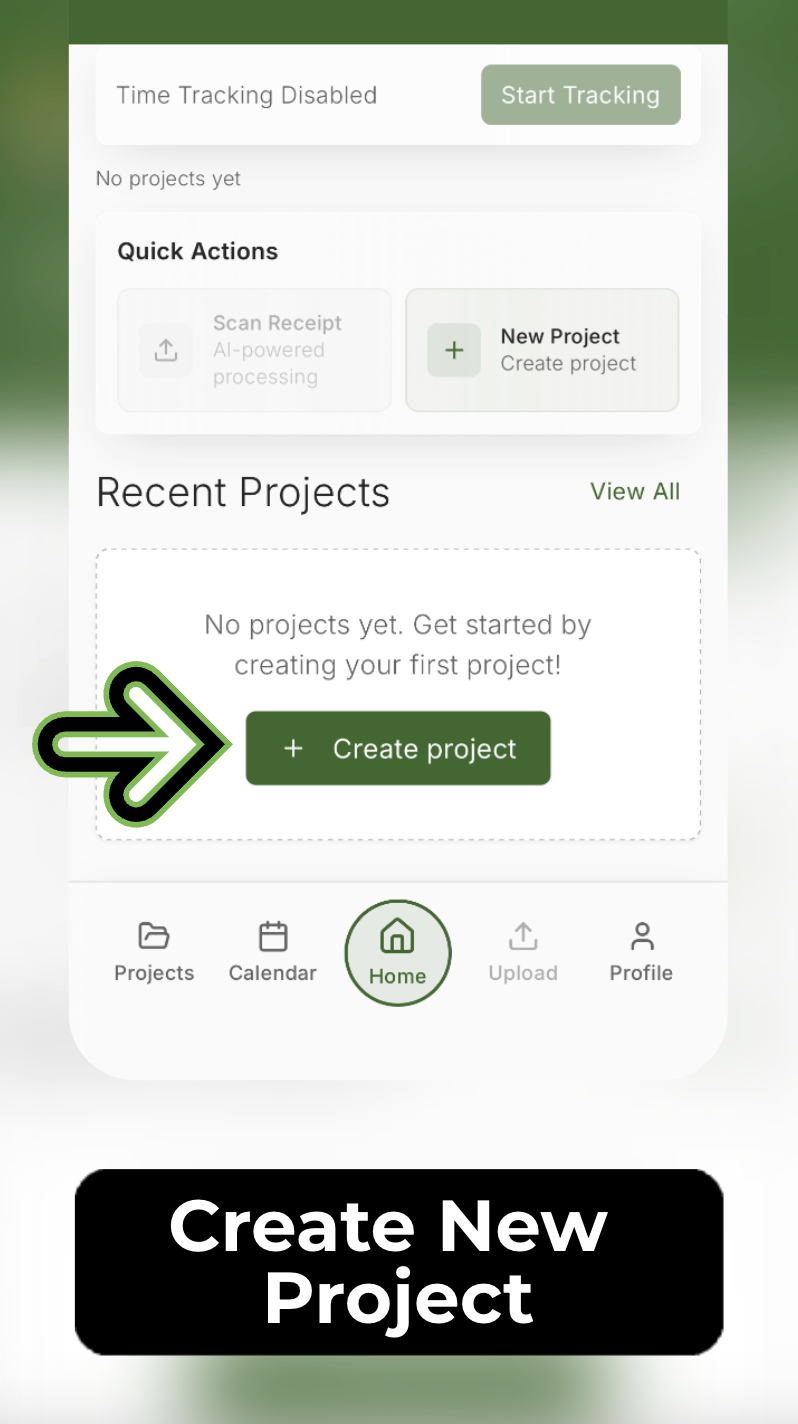
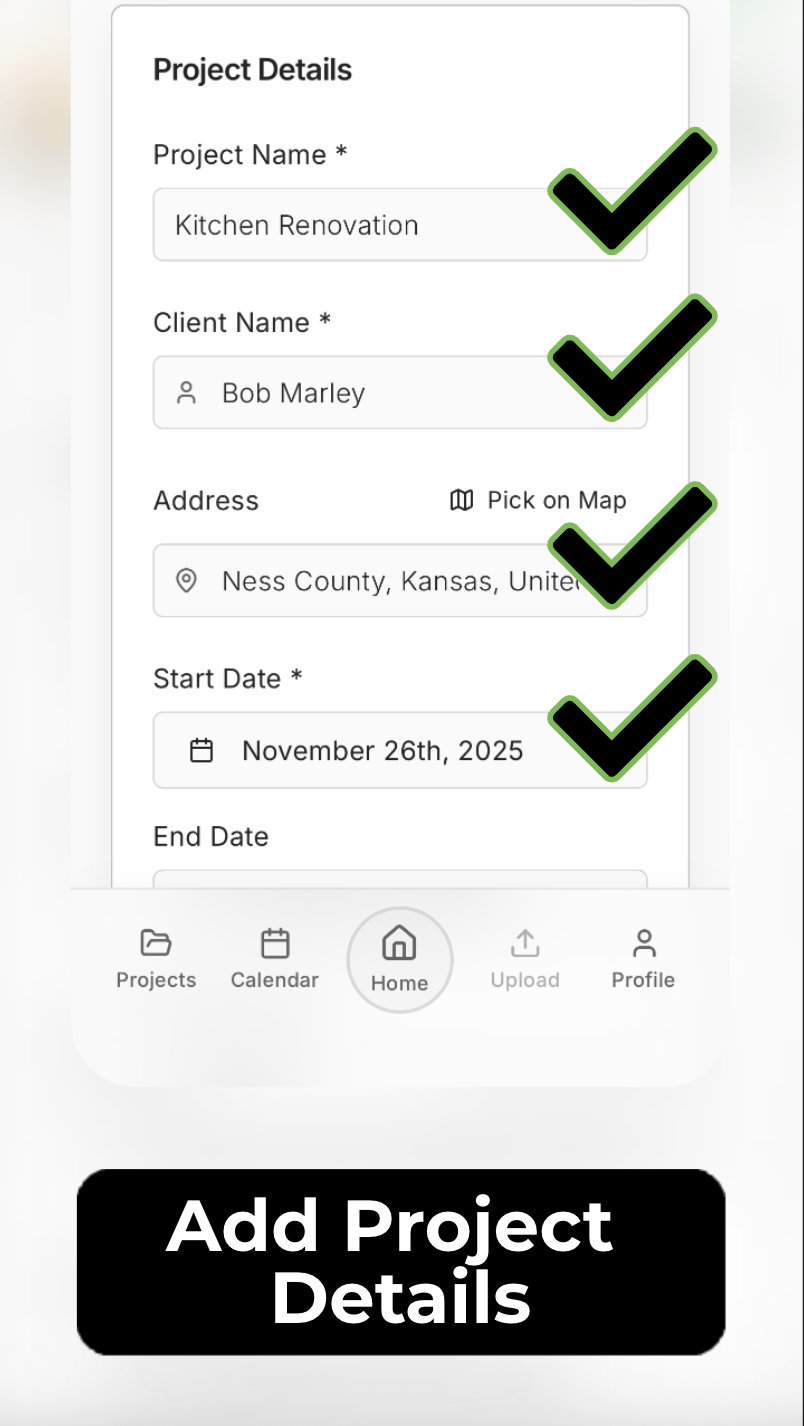
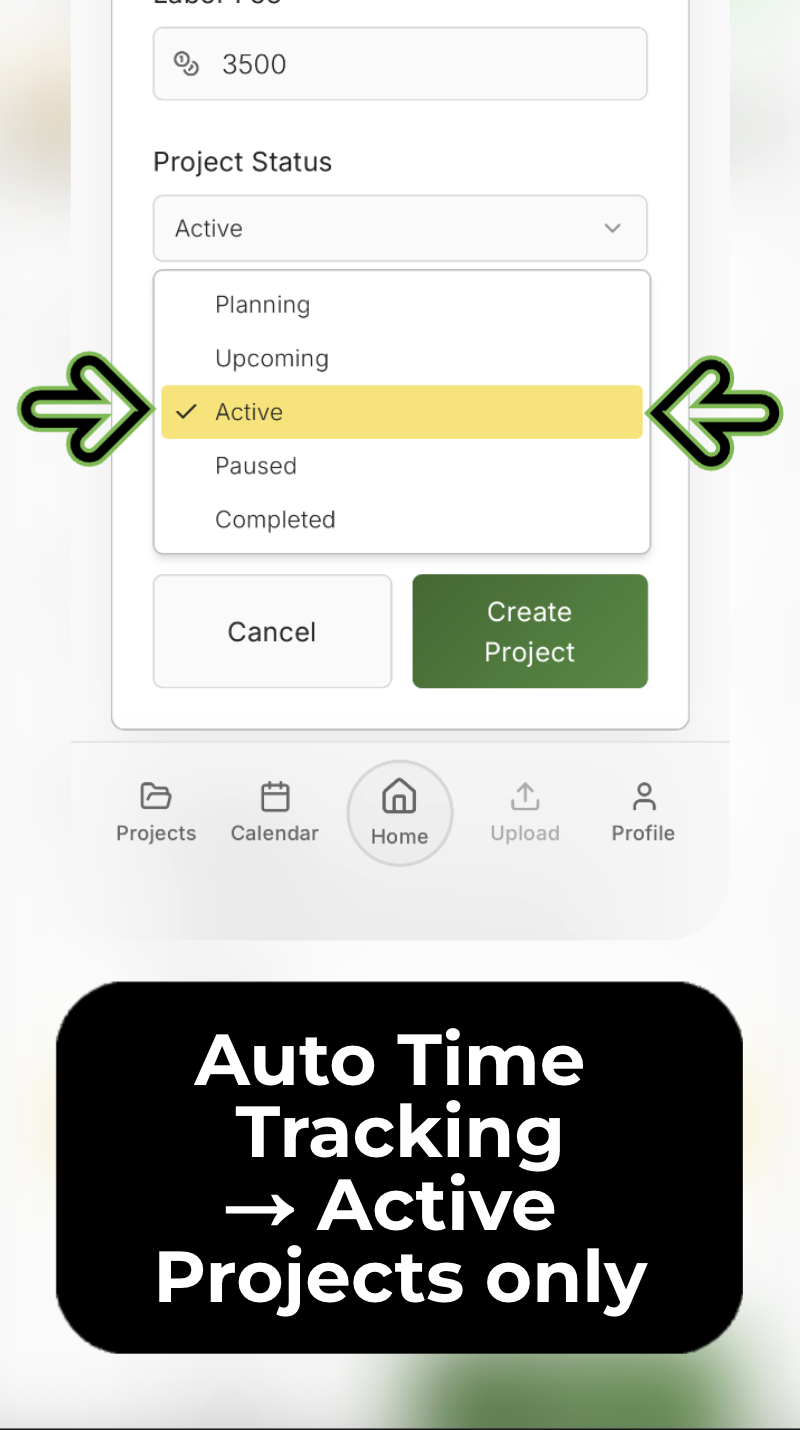
The project creation screen lets you enter the project name, client, GPS address, start date, and optionally an end date, project total, labor fee, and description. Only projects set to "Active" status are tracked.
Tap "Start Working"
When you are ready to begin your workday, you tap a single button. This activates the GPS monitoring for all your active projects.
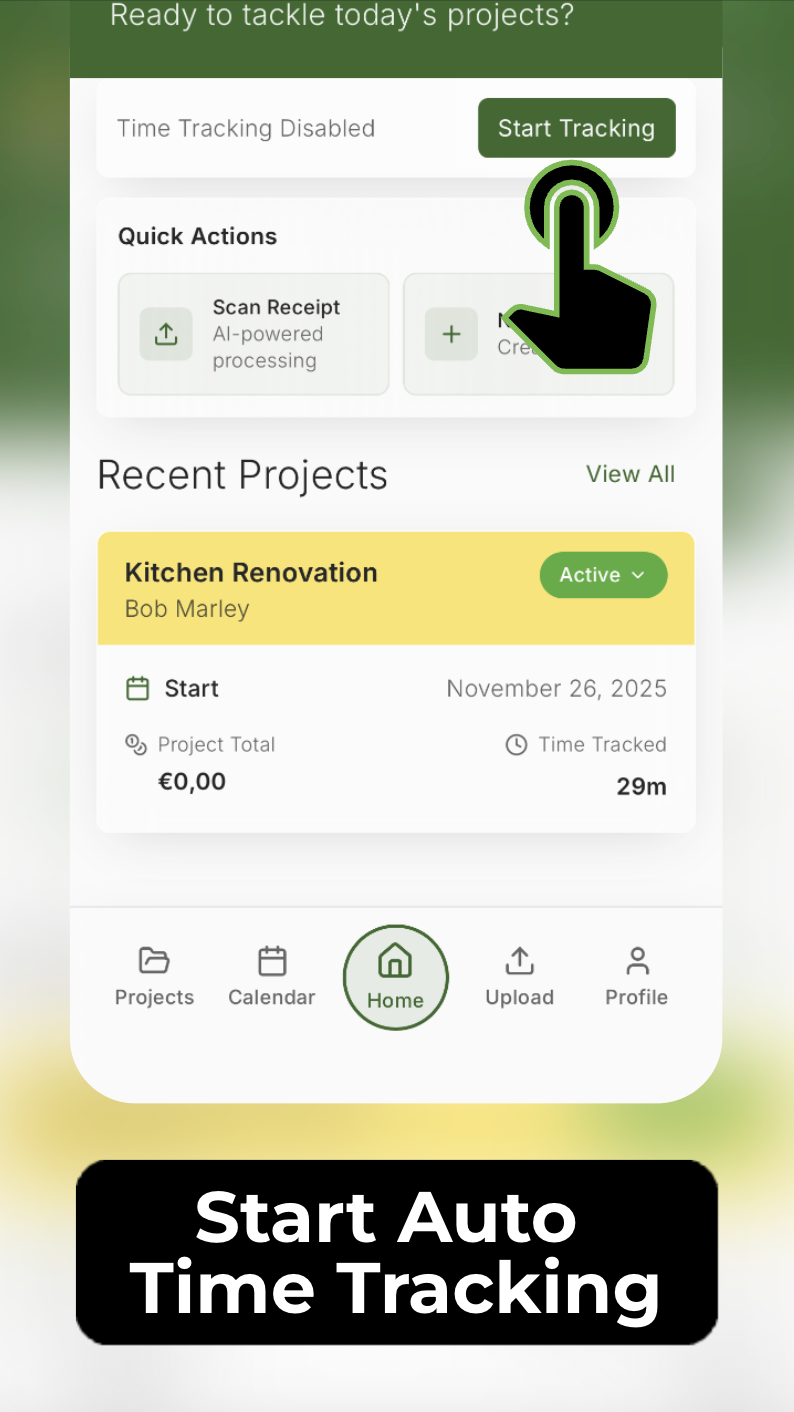
The start button tells the app you are available for work. From this moment, the app monitors your location against all active project sites.
GPS detects your location
The app checks your current GPS coordinates against the addresses stored in your active projects. When you arrive at a matching location, it identifies which project you are at.
10-minute safety countdown
To avoid false tracking (for example, if you are just driving past a site or stopped briefly), the app starts a 10-minute countdown. If you are still at the location after 10 minutes, it confirms you are working there.
The countdown screen shows that the app has detected your location and is waiting to confirm you are staying on site. This prevents accidental tracking from drive-bys or short stops.
Automatic work time tracking begins
After the countdown, tracking starts. Your hours are logged continuously and assigned to the correct project. You do not need to touch your phone.
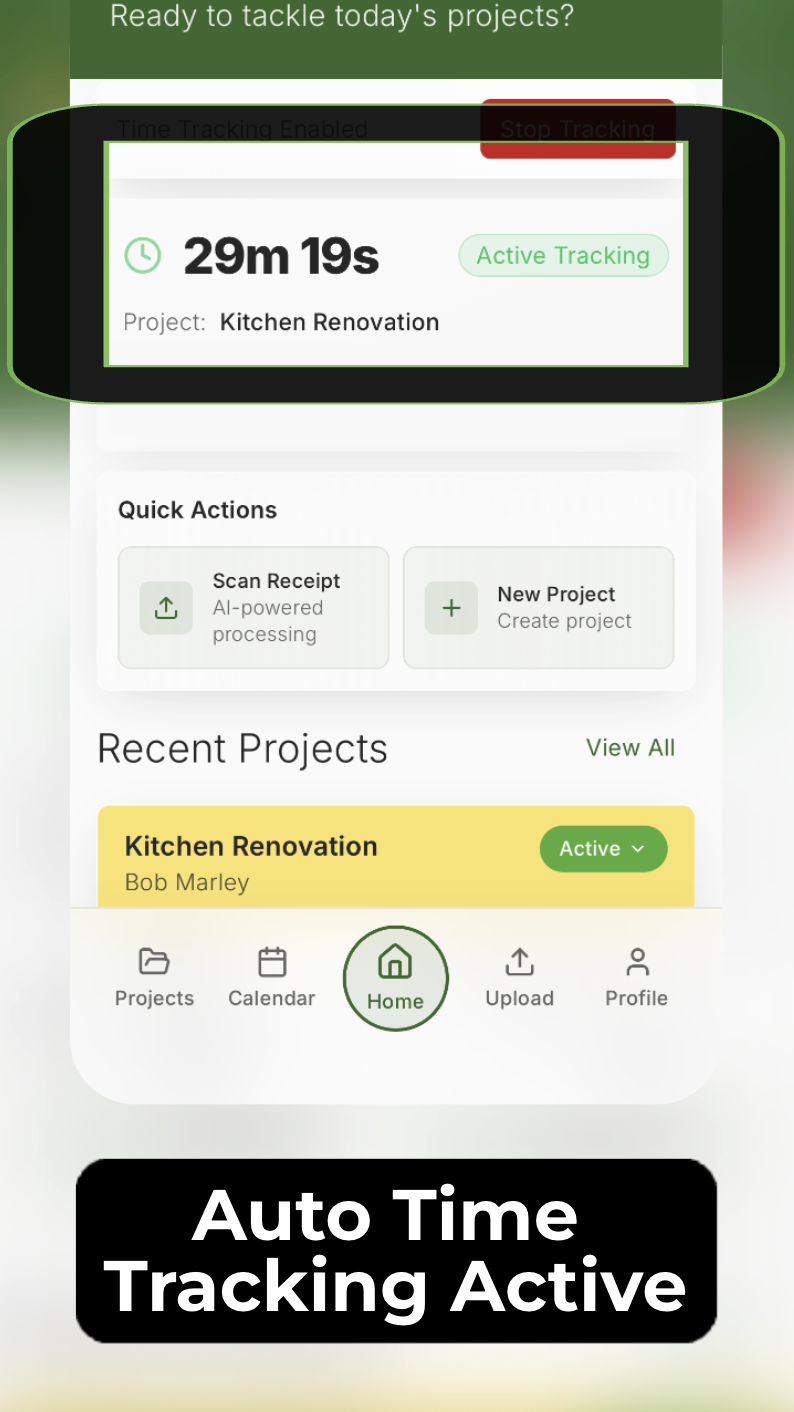
While tracking is active, the app shows a running timer with the current project name. It continues tracking as long as you remain at the location.
Tracking stops when you leave
When you drive away from the job site, the app detects that you have left the GPS radius and stops the timer automatically. The tracked session is saved to your calendar.
Data saved to your calendar
Every tracked session appears in your monthly calendar as a clean entry with the project name, start time, end time, and total hours. You can review and adjust entries if needed.
The entire process happens in the background. After the initial "Start Working" tap, a contractor can put their phone in their pocket and not think about work time tracking until the end of the day. This is what makes GPS-based tracking radically different from timer apps that require constant manual interaction.
Key takeaway: GPS work time tracking works by matching your physical location to registered project addresses. A safety countdown prevents false tracking. After confirmation, hours are logged automatically until you leave.
How to Track Work Hours on Mobile Devices?
To track work hours on a mobile device, you install a work time tracking app on your smartphone that uses GPS, timers, or manual entry to log your hours. The best mobile tracking apps are designed for one-handed, phone-in-pocket operation — not desktop software shrunken down to a small screen.
Mobile work time tracking has become the default for anyone who does not sit at a computer all day. Your phone is always with you, has GPS built in, and can run background processes — making it the ideal work time tracking device for field workers, contractors, and mobile freelancers.
What makes a good mobile work time tracking experience
- Minimal taps: The fewer buttons you need to press, the better. Ideally, one tap to start your day and zero taps during it.
- Background operation: The app tracks while it is in the background. You should not need to keep the screen on.
- Offline support: Job sites often have poor connectivity. The app must track without internet and sync later.
- Quick access to data: At the end of the day, you should be able to see your tracked hours in under 5 seconds.
- Low battery usage: GPS geofencing uses far less battery than constant navigation. A well-built tracker barely affects your phone's battery life through a full workday.
The mobile tracking workflow
A practical mobile work time tracking workflow for a contractor visiting three job sites in a day looks like this:
7:00 AM: Tap "Start Working" in the app. Put phone in pocket. Drive to first site.
7:25 AM: Arrive at Site A. App detects location, starts countdown, begins tracking after 10 minutes.
11:30 AM: Leave Site A. Tracking stops automatically. Drive to Site B.
12:00 PM: Arrive at Site B. App detects new location, begins tracking for a different project.
3:00 PM: Leave Site B, drive to Site C.
3:30 PM: Arrive at Site C. Tracking starts for the third project of the day.
5:15 PM: Leave Site C. Stop working for the day.
At no point during this day did the contractor need to open the app, press buttons, or think about work time tracking. Three separate projects were tracked with precise start and end times, all in the background.
Key takeaway: Mobile work time tracking should be invisible. The best apps work in the background using GPS, require minimal interaction, and produce clean data you can review in seconds.
Manual vs. Automatic Work Time Tracking: A Complete Comparison
Manual work time tracking requires you to remember, start, stop, and record every work session yourself. Automatic work time tracking uses technology — usually GPS or activity detection — to handle this without your input. For field workers, the difference in accuracy is typically 10 to 20 percent of billable hours.
Side-by-side comparison
| Factor | Manual Tracking | Automatic (GPS) Tracking |
|---|---|---|
| Setup effort | Low — pen and paper or a free app | Medium — need to register project locations |
| Daily effort | High — must remember to start/stop | Minimal — one tap to start the day |
| Accuracy | Low to medium — prone to rounding and forgetting | High — GPS-verified to the minute |
| Multi-site support | Poor — must manually switch between projects | Excellent — auto-detects which site you are at |
| Location proof | None | GPS-verified arrival and departure |
| Admin time per week | 1–3 hours (reviewing, correcting, entering data) | 5–10 minutes (quick review) |
| Report quality | Depends on consistency of manual input | Consistent, exportable (PDF, CSV, Excel) |
| Cost of errors | High — lost revenue, billing disputes | Low — errors are rare and easily corrected |
| Best for | Desk workers with simple schedules | Field workers, contractors, multi-site freelancers |
The numbers tell a clear story. If you work at a single location and have a predictable schedule, manual tracking can work. If you move between sites, handle materials, and work with tools — automatic GPS-based tracking saves time, recovers lost revenue, and eliminates administrative headaches.
"I used to spend 45 minutes every Friday fixing my timesheet. Now I spend five minutes reviewing what the app already tracked. The hours are more accurate than anything I could have written down." — Independent HVAC contractor, Vienna
Key takeaway: Manual tracking works for desk workers. Automatic GPS tracking works for everyone else — and it recovers 10 to 20 percent more billable hours on average.
Real-World Workflow: A Day With Automatic Work Time Tracking
To understand how GPS-based automatic work time tracking works in practice, let us follow Ana through a typical workday. Ana is an independent electrician in Madrid who handles three to four jobs per day across the city.
6:45 AM — Morning setup
Ana opens Baxilancer on her phone. She has four active projects this week, each with a GPS address already set. She taps "Start Working" and puts her phone in her jacket pocket.
7:20 AM — First job site
Ana arrives at a kitchen renovation in the Malasaña neighborhood. The app detects she is within the GPS radius of the project "García Kitchen Rewire." A 10-minute countdown begins. After 10 minutes, tracking starts automatically. Ana is already pulling cable and does not notice.
10:15 AM — Leave first site
Ana packs her tools and drives to the next job. The app detects she has left the García project radius and stops tracking. Duration logged: 2 hours 45 minutes.
10:40 AM — Hardware store detour
Ana stops at a supply store to pick up a junction box. She takes a photo of the receipt using the app's receipt scanner. The AI OCR extracts the amount (14.50 EUR) and links it to the next project.
11:05 AM — Second job site
She arrives at a new build apartment in Chamberí. The app detects the location for "Martínez New Build — Electrical." Ten-minute countdown, then tracking. Ana is focused on trunking and does not check her phone once.
2:00 PM — Lunch break
Ana leaves the site for lunch. Tracking stops automatically. She takes a 45-minute break. When she returns, the app detects her location again and restarts tracking after the countdown. The break is not included in the work hours — automatically.
4:30 PM — End of day
Ana finishes at the Martínez site, drives to a quick inspection at a third location (15 minutes), and heads home. She opens the app at home and reviews her day:
- García Kitchen Rewire: 2h 45m
- Martínez New Build: 4h 10m (including return after lunch)
- López Inspection: 15m
- Total: 7h 10m
All entries are in her monthly calendar. She makes one small adjustment — she arrived at García five minutes before the GPS lock registered — and her day is done. Total admin time: under two minutes.
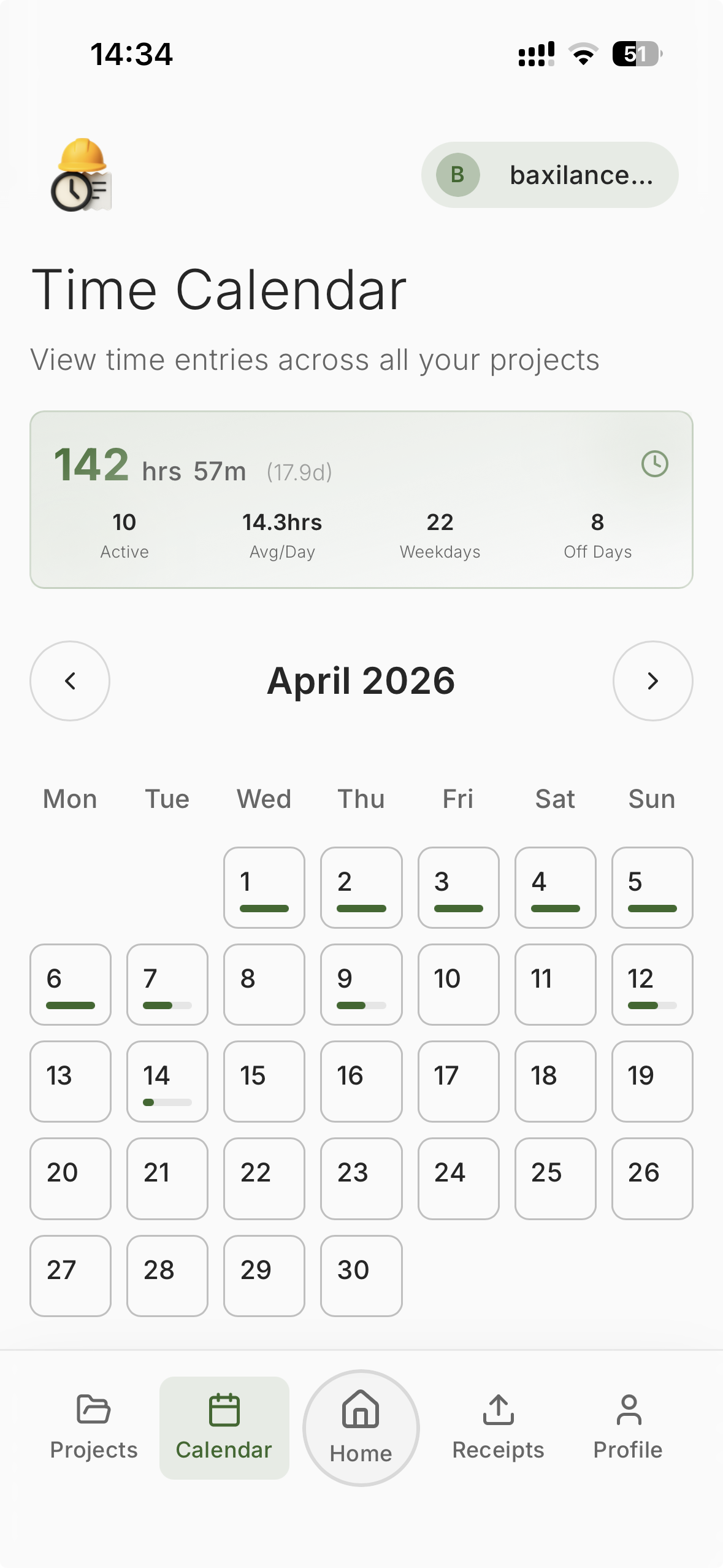
The monthly calendar view shows all tracked sessions as color-coded entries. Each entry displays the project name, duration, and can be tapped for details or manual corrections.
Compare this to Ana's old workflow: sitting at her kitchen table on Friday evenings, trying to piece together five days of jobs from memory, gas receipts stuffed in her glovebox, and vague notes in her phone's notepad. The difference is not incremental — it is a completely different experience.
Problems With Traditional Work Time Tracking Apps
Traditional work time tracking apps were designed for office workers, not for contractors and tradespeople. Their fundamental assumption — that you will interact with your device regularly throughout the day — does not match the reality of physical work.
Problem 1: They require constant manual input
Every traditional timer app assumes you will remember to start it. For an office worker switching between Slack and Figma, this is reasonable. For a roofer 20 feet up a ladder, it is absurd. The result: timers are forgotten, hours are lost, and the data in the app is incomplete.
Problem 2: They do not understand location
Traditional apps have no concept of "where" you are working. They track time, but not place. For a contractor managing five active job sites, this means manually tagging every session to the right project. Miss one, and your reports are wrong.
Problem 3: They are desktop-first
Most popular work time tracking tools were built as web apps or desktop applications. Their mobile versions are afterthoughts — clunky interfaces, slow loading times, and features that require a keyboard. Try entering "Client: Müller Residence — Task: Panel upgrade, Phase 2" using your thumbs while standing in a dusty basement.
Problem 4: They do not handle breaks automatically
If you leave a job site for lunch, a traditional timer keeps running unless you stop it. Forget to pause it? You just logged a 45-minute lunch as billable work. Forget to restart it? You just lost 45 minutes of the afternoon for free.
Problem 5: No financial context
Knowing you worked 37 hours this week is useful. Knowing you worked 37 hours across four projects, spent 312 euros on materials, and earned a net margin of 43 percent is powerful. Most traditional apps stop at hours. They do not connect time to money — which is the entire reason field workers track time in the first place.
Key takeaway: Traditional work time tracking apps were not designed for your workflow. If you are a contractor or manual worker, using a desktop-first timer app is like using a spreadsheet to navigate traffic — it technically works, but there are far better tools for the job.
Why GPS-Based Tracking Is the Future
GPS-based tracking is the future because it solves the core problem of work time tracking for field workers: it removes the human from the loop. Instead of relying on memory and discipline, it relies on physics — your physical location determines what gets tracked.
The evolution of work time tracking follows a clear pattern:
- 1990s: Paper timesheets
- 2000s: Digital spreadsheets and basic software
- 2010s: Cloud-based timer apps and team dashboards
- 2020s: GPS automation, AI receipt scanning, and mobile-first tracking
Each generation solved a problem from the previous one. Paper was slow, so we moved to spreadsheets. Spreadsheets were isolated, so we moved to cloud apps. Cloud apps required manual input, so we moved to GPS automation.
Why GPS works better for field workers
GPS-based tracking succeeds where other methods fail because it aligns with how field workers actually work:
- No behavior change required: You do not need to build a new habit of clicking timers. You just go to work. The app handles the rest.
- Multi-site automatic switching: Visit three job sites in a day? Each one is tracked to the correct project without any input from you.
- Break detection: Leave the site for lunch? Tracking pauses. Return? It restarts. No buttons needed.
- Dispute-proof records: GPS logs include location data that verifies you were actually at the site. This is far more credible than a self-reported timesheet.
- Passive operation: After the initial tap to start working, the app runs silently in the background. Your phone stays in your pocket.
The technology is also getting better. Modern smartphones have GPS accuracy within 3 to 5 meters in open areas. Combined with Wi-Fi and cell tower data, the location detection works reliably even in dense urban environments and partially covered job sites.
The privacy question
Some workers worry about GPS tracking and privacy. This concern is valid for employer-imposed tracking that monitors every movement. But self-employed work time tracking is fundamentally different — you control the system, you choose which locations are monitored, and the app only tracks when you are at a job site you defined yourself. One example of this approach is Baxilancer, which only activates GPS monitoring when the user explicitly taps "Start Working" and only at project locations the user has registered.
Key takeaway: GPS tracking removes the biggest failure point in work time tracking: the human. For field workers, it is more accurate, less effort, and produces better data than any manual method.
Deep Dive: How Baxilancer Solves the Work Time Tracking Problem
Baxilancer is a GPS-based automatic work time tracking app built specifically for freelancers, contractors, and manual workers who need accurate hour logs without the administrative overhead of traditional work time tracking tools.
Instead of adapting a desktop-first timer for mobile use, Baxilancer was designed from the ground up around a single principle: if you are at the job site, you are working. That one idea drives the entire product.
How the project system works
Everything in Baxilancer starts with a project. Each project includes:
- Project name (required) — what you call the job
- Client name (required) — who you are working for
- GPS address (required) — the physical location of the job site
- Start date (required) — when the project begins
- End date (optional) — estimated completion
- Project total (optional) — the quoted price for the job
- Labor fee (optional) — your hourly or daily rate
- Description (optional) — notes about the scope of work
- Status — planning, active, paused, or completed
Only projects with "Active" status are tracked by GPS. This means you can have 20 projects in your system, but if only 3 are active, the app only monitors those 3 locations. Projects in "planning" or "paused" states are saved but ignored by the tracking engine.
The tracking flow in detail
The automated tracking process follows a deliberate sequence designed to balance accuracy with battery efficiency and prevent false positives:
Step 1: You tap "Start Working." This is the only manual action required for the entire day.
Step 2: The app activates GPS monitoring and checks your location against all active project addresses.
Step 3: When you arrive at a matching location, a 10-minute safety countdown begins. This prevents false tracking — for example, if you are driving past a job site or stopped nearby for a coffee.
Step 4: After 10 minutes at the location, automatic work time tracking begins. Your hours are assigned to the correct project.
Step 5: Tracking runs continuously while you remain at the location. You do not need to interact with the app.
Step 6: When you leave the GPS radius of the project location, tracking stops automatically. The session is closed and saved.
Step 7: The completed session appears in your monthly calendar as a clean entry with project name, start time, end time, and duration.
If an entry needs adjustment — perhaps you arrived earlier and the GPS was slow to lock — you can edit any entry manually. The system is automatic-first but allows human override for edge cases.
Feature Breakdown
Beyond automatic GPS work time tracking, Baxilancer includes a set of features designed for the specific financial and administrative needs of independent workers.
Monthly calendar tracking
Every tracked session appears on a monthly calendar. You can see at a glance which days you worked, how long each session was, and which projects occupied your time. Tapping an entry shows full details and allows manual correction.
Project-based financial overview
Each project has a financial dashboard that shows total hours worked, labor income, materials costs, and profit calculations. This is where the app goes beyond simple work time tracking. You can see:
- Gross profit: Total income from the project minus material costs
- Net profit: Gross profit minus your time cost (based on your labor rate)
- Profit margins: Percentage-based view of how profitable each job actually is
- Hours breakdown: Total hours tracked, with daily and weekly summaries
This financial visibility is critical for independent workers. It answers the question most freelancers cannot answer: "Am I actually making money on this project?"
Receipt scanning with AI OCR
When you buy materials for a project — screws, cable, pipe fittings, paint — you can scan the receipt directly in the app. The AI-powered receipt scanner uses OCR (optical character recognition) to extract the total amount and vendor name. You link the receipt to a project, and it is automatically included in the financial overview and expense reports.
No more lost receipts in truck dashboards. No more forgotten deductions at tax time.
Materials tracking
Beyond receipts, you can track materials used per project. This gives you a clear picture of material costs versus labor costs, helping you quote future similar projects more accurately.
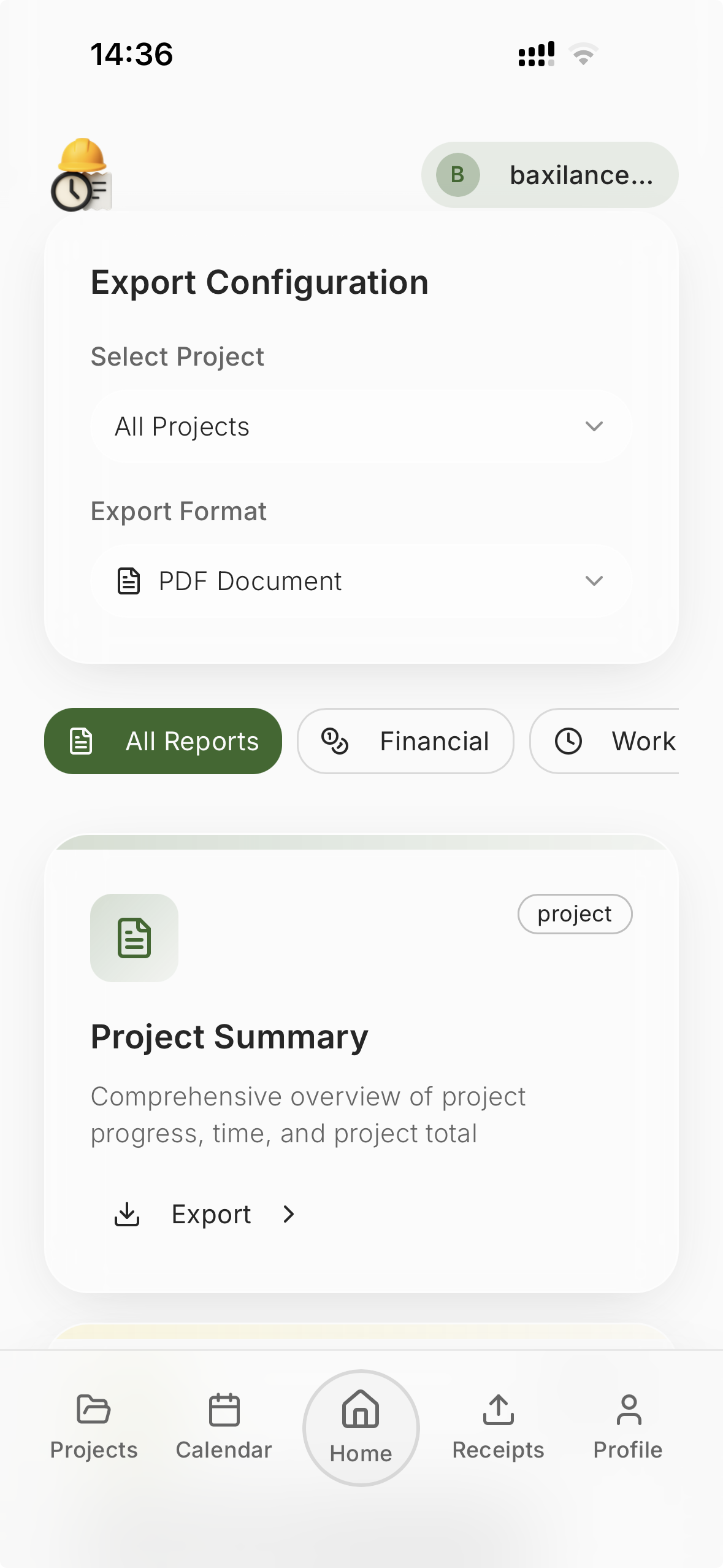
Export reports
When it is time to invoice a client or file taxes, you can export your data as:
- PDF reports — professional, ready to attach to invoices
- CSV files — for importing into accounting software or spreadsheets
- Excel files — for custom analysis and record-keeping
Each report includes project details, date ranges, hours per session, and financial summaries.
Manual time correction
GPS is not perfect. Sometimes you arrive at a location before the signal locks. Sometimes you step outside the radius briefly to check something on the street. The app includes a manual correction option that lets you adjust any tracked session — add time, remove time, or change the project assignment. Automatic-first, manual backup.
Comparison Table: Manual vs. GPS vs. Hybrid Tracking
To help you choose the right approach, here is a direct comparison of the three main work time tracking methods available in 2026:
| Feature | Manual (Paper / Spreadsheet) | GPS Automatic (e.g., Baxilancer) | Hybrid (Timer App + Manual) |
|---|---|---|---|
| Ease of setup | Very easy | Easy (add projects once) | Easy |
| Daily effort | High | Minimal (one tap) | Medium |
| Accuracy | Low (memory-based) | High (GPS-verified) | Medium (depends on user) |
| Multi-site tracking | Very difficult | Automatic | Manual switching |
| Break handling | Estimated | Automatic (leave = pause) | Manual pause/resume |
| Location proof | None | Yes (GPS data) | None |
| Financial tracking | Separate spreadsheet needed | Built-in per project | Varies by app |
| Receipt tracking | Paper / shoebox | AI OCR scanning | Usually not included |
| Report export | Manual creation | PDF, CSV, Excel | Varies by app |
| Weekly admin time | 1–3 hours | 5–10 minutes | 30–60 minutes |
| Best for | Single-location, simple jobs | Multi-site field workers | Desk workers with some travel |
| Revenue recovery | Baseline | +10–20% more billable hours | +5–10% improvement |
Key takeaway: GPS automatic tracking wins on every metric that matters for field workers: accuracy, effort, multi-site support, and revenue recovery. Manual tracking only makes sense for the simplest, single-location work scenarios.
Frequently Asked Questions
What is the best free work time tracking app for freelancers?
The best free work time tracking apps for freelancers offer automatic tracking, project-based logs, and report exports. GPS-based apps like Baxilancer provide a free trial that includes automatic location-based work time tracking, receipt scanning, and financial overviews — features that manual timer apps typically lack. For basic needs, Toggl and Clockify offer free tiers with manual timers.
How does GPS work time tracking work?
GPS work time tracking uses your phone's location services to detect when you arrive at and leave a job site. When you enter a registered project location, the app starts a safety countdown (usually 10 minutes) to confirm you are actually working there. After confirmation, work time tracking begins automatically and continues until you leave the location. All data is saved to a project-based calendar.
Is automatic work time tracking accurate?
Yes. GPS-based automatic work time tracking is accurate to within a few meters of your job site location. It eliminates human errors like forgetting to start or stop a timer, rounding hours, or guessing at the end of the week. Most systems also include a manual correction option for the rare edge cases where GPS signal is delayed.
Can I track time for multiple projects in one day?
Yes. GPS-based work time tracking apps detect which project location you are at and log hours to the correct project automatically. If you visit three different job sites in a day, each visit is tracked and assigned to its respective project without any manual input. This is one of the biggest advantages over manual timers.
Does GPS work time tracking drain my phone battery?
Modern GPS geofencing is energy-efficient and uses significantly less battery than navigation apps like Google Maps. Most users report negligible battery impact throughout a full workday. The app uses a combination of GPS, Wi-Fi, and cell tower data to minimize power consumption while maintaining accuracy.
How do contractors prove their hours to clients?
Contractors using GPS work time tracking apps can export detailed reports showing exact arrival and departure times, location data, and total hours per project. These reports can be exported as PDF, CSV, or Excel files and serve as verifiable proof of work according to GPS.
What is the difference between manual and automatic work time tracking?
Manual work time tracking requires you to remember to start and stop a timer or fill in a timesheet after the fact. Automatic work time tracking uses GPS, geofencing, or activity detection to start and stop tracking without your input. For field workers, automatic tracking is more accurate by 10 to 20 percent and eliminates the weekly admin burden of managing timesheets.
Can I track receipts and expenses alongside my hours?
Yes. Apps like Baxilancer include a receipt scanner that uses AI OCR to extract amounts, vendors, and dates from photos of receipts. You link each receipt to a specific project for clean expense reporting and accurate profit calculations. This eliminates the paper receipt problem entirely.
Is my location data private and secure?
With self-managed GPS tracking apps, you control everything. The app only tracks your location at job sites you have registered. It does not monitor you outside of active work sessions. Data is encrypted in transit and at rest, and is never shared with third parties. Read the privacy policy of any app before using it.
How do I switch from paper timesheets to an app?
Start by setting up your regular job sites in the app during a quiet moment. Run the app alongside your paper timesheets for one week to compare accuracy and build confidence. In week two, use the app as your primary source. By week three, you can drop paper entirely and rely on automated reports for invoicing.
What happens if GPS signal is weak on a job site?
Modern work time tracking apps work offline and use a combination of GPS, Wi-Fi, and cell tower triangulation to determine your location. Even in basements, parking garages, or rural areas with weak signal, the system is designed to maintain reasonable accuracy. You can always make manual corrections for any session where the GPS was imprecise.
Can I use GPS work time tracking for invoicing?
Absolutely. The primary purpose of GPS work time tracking for independent workers is to produce accurate, professional records for client invoicing. You can export detailed reports per project or per time period, including hours, dates, and financial summaries — ready to attach to an invoice or submit to an accountant.
Conclusion
The way most freelancers, contractors, and manual workers track their hours has not changed meaningfully in decades. Paper timesheets, memory-based guesses, and timer apps that demand constant attention — these tools were built for office workers, not for people who spend their days on construction sites, in client homes, or driving between service calls.
The real cost of poor work time tracking is not just the lost hours. It is the compound effect of undercharging on every project, missing tax deductions every quarter, and spending evenings and weekends doing admin work instead of resting.
GPS-based automatic work time tracking changes the equation. It moves work time tracking from something you have to do to something that happens in the background while you do your actual work. You arrive at a job site, and the app automatically starts tracking your work time. You leave, they stop. You scan a receipt, it is linked to the project. At the end of the month, you export a report and send your invoice.
That is what work time tracking should be: invisible, accurate, and working for you.
If your current system relies on memory, sticky notes, or a timer you forget to press, it might be time to explore modern solutions like GPS work time tracking. The technology is mature, the apps are simple, and the difference in your invoiced hours will speak for itself.
Start Tracking Smarter
Explore how GPS-based automatic work time tracking works for freelancers, contractors, and tradespeople.

Related: For Freelancers · For Contractors · Job Site Tracking · Receipt Scanner
Read also: Why Manual Time Tracking Fails on Job Sites